
Give Windows Updates a Maintenance Window in Intune
You have a maintenance slot from 02:00 to 04:00. Your update ring already has active hours, but the change ticket asks a different question: which update operations are allowed to run in that slot? Intune 2611 adds a maintenance window profile for operating system and driver updates on Windows. You choose the update action, start date, time, duration and repeat schedule.
The Problem
Update rings decide what is offered and when it becomes mandatory. Active hours only keep restarts away from working time. Neither tells Windows “download whenever you like, but install and restart only on Thursday night”. Until now, that promise to the service desk and the change board lived in a document, not in a policy.
The Nugget
Open Devices > Manage devices > Maintenance windows > Create profile. On the configuration page, enable Maintenance windows and pick the Update action:
| Update action | Restricted to the window | Allowed outside the window |
|---|---|---|
| Download, install and restart | Download, installation, restart | Nothing |
| Install and restart | Installation, restart | Download |
| Restart only | Restart | Download, installation |
Then set the schedule. Repeat schedule can be None, Daily, Weekly or Monthly. Monthly windows are either day-based (day 1 to 28) or week-based, for example the first Thursday. Duration is 2 to 24 hours. All times are the device’s local time, so there is no tenant-wide time zone to set.
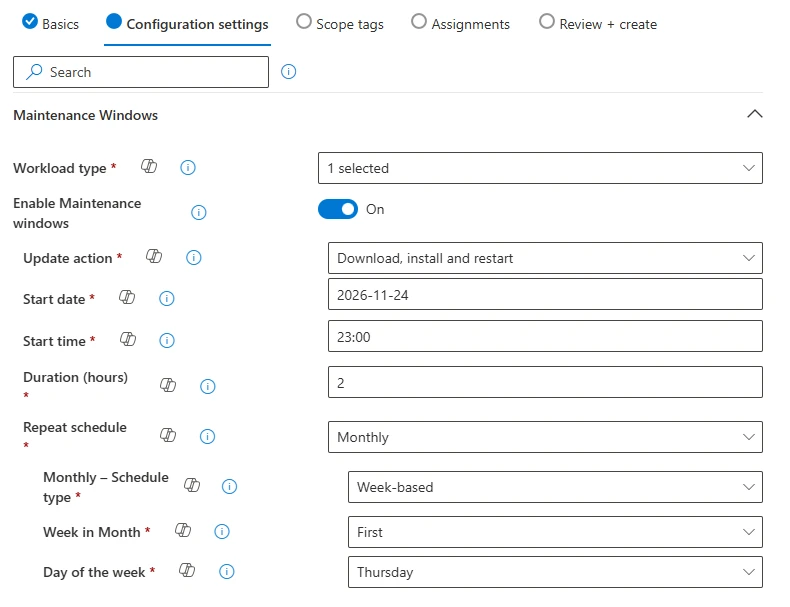
Configuration settings of a maintenance window profile: two hours from 23:00, on the first Thursday of every month.
The profile covers quality, feature, Hotpatch, .NET, driver and firmware updates. It controls when actions can begin, not which updates are approved.
Requirements: Windows 11 24H2 with KB5077181 (build 26100.7840 or later) and Intune enrolment.
Make the first window easy to observe
If devices may download during business hours, pick Install and restart and a two-hour window. Assign it to one pilot group. Then test two devices:
- One that stays online through the window. Note when the installation really starts.
- One that is asleep or powered off during the slot. See what happens at the next window.
Keep the update ring visible during the test. Capture its deadline and restart settings next to the new profile, so you can explain a surprise restart to the service desk.
Why This Matters
The window is a boundary for starting work, not a guarantee. Microsoft documents several cases where Windows can act outside it:
- Expired deadlines and grace periods. Windows can enforce the update and the restart anyway.
- Expedited quality updates take priority over the window.
- Deferrals still apply. A seven-day quality deferral combined with a Saturday window can skip the first Saturday after a Tuesday release, because the update is not available yet.
- Active hours are no fallback for actions governed by a window.
- Users can still start updates themselves if other policies allow it.
An action that starts inside the window can also run past its end. Do not write a hard end time into the change ticket before you have seen start and finish times on a real client.
What Admins Should Do
- Pick the action that matches your promise. Install and restart is the usual compromise when downloads are harmless but restarts are not.
- Align deadlines and grace periods with the window. An expired deadline overrides the window.
- Check build 26100.7840 or later on the pilot devices before you blame the profile.
- Remove one-time windows after they pass, or replace them with a recurring schedule.
- Do not use deployment status as proof. Intune reports whether the policy applied, not whether an update installed or restarted in the window. Use Windows Update or Windows Autopatch reporting and compare timestamps in the device’s local time.
Pro Tip
Name profiles after the promise, not the technology: MW-Workstations-Thu1-23-00-2h-Install-Restart. When the service desk asks why a laptop restarted at midnight, the profile name already answers it.
Sources
- Microsoft Learn: Configure maintenance windows
- Microsoft Learn: What’s new in Intune, week of November 16, 2026 (service release 2611)
- Microsoft Learn: Policy CSP - Update
Head of AI
Jannik brings deep expertise in AI integration, modern infrastructure, and enterprise transformation at scale.
Leading Expert
Florian specializes in Intune, endpoint management, and security with extensive real-world enterprise experience.