
AutopilotSnap: Scan the Autopilot QR Code and Send It to IT
Registering a new Windows device for Autopilot Device Preparation usually means someone with Intune access has to be involved. The person unboxing the device often has no such access, so serial numbers get typed by hand, photographed badly or lost in a chat thread.
AutopilotSnap removes that gap. It is a small, free web app that reads the QR code Windows shows during setup, checks the device, and sends a ready-made CSV to your IT team. No sign-in, no admin rights, nothing to install.
Try it: https://autopilotsnap.msnugget.com/ Source code: https://github.com/FlorianSLZ/msn-AutopilotSnap
How it works
-
Show the QR code on the Windows device. At the first setup screen (region selection), press the Windows key five times and choose Scan QR code.
-
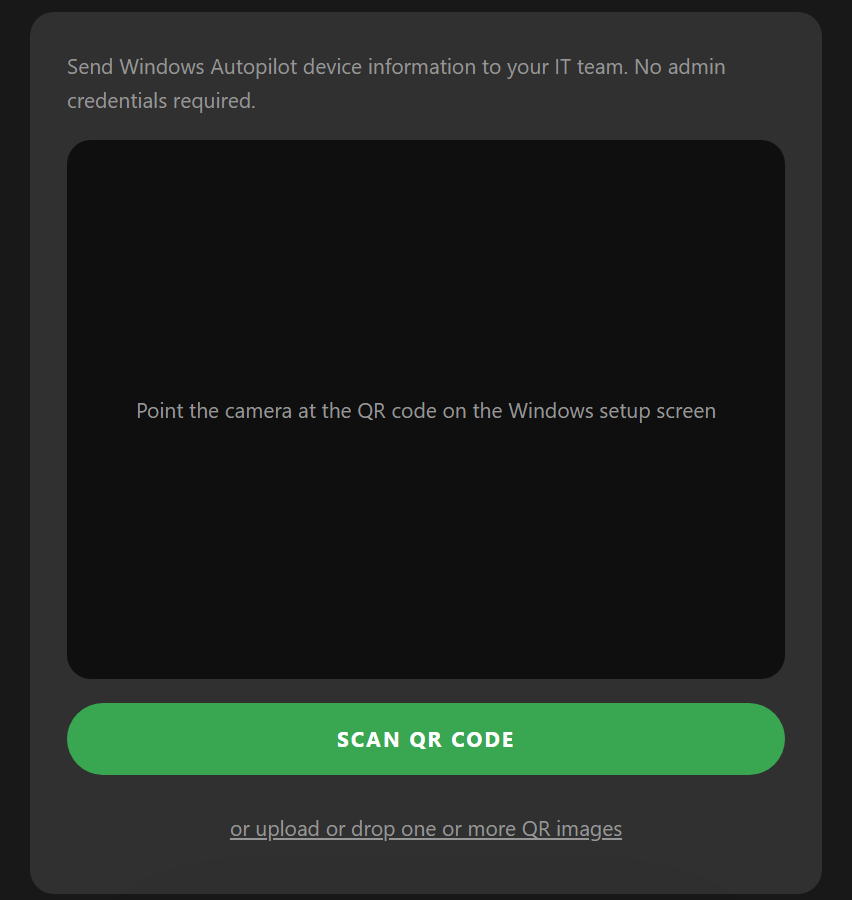
Scan it with your phone or laptop. Open AutopilotSnap and tap Scan QR Code. No camera? Take a photo or screenshot of the code and upload or drop it instead.
-
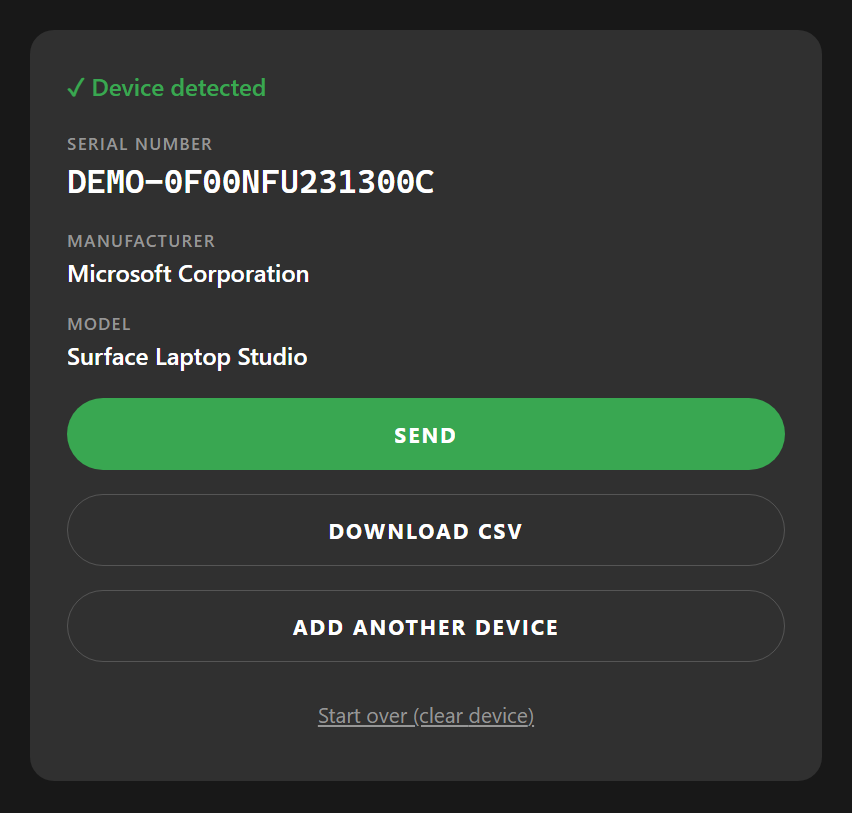
Check the device. AutopilotSnap shows the serial number, manufacturer and model it found.
-
Tap Send. Your device’s share sheet opens with the CSV attached. Pick your mail app and your IT team’s address. If your browser cannot share files, the CSV is downloaded and your mail app opens, and you attach the file yourself.
Bulk scan: many devices, one CSV
Preparing a whole batch of devices? You don’t need to send one email per device.
- Scan several devices in a row. After each scan, tap Add another device.
- Or upload many images at once. Select or drag and drop several QR screenshots or photos in one go.
Everything ends up in one CSV with one line per device, and duplicate serial numbers are only added once. Your IT team uploads a single file instead of dozens. If some images can’t be read, AutopilotSnap tells you which ones, and the rest still go through.
What your IT team gets
A plain CSV, one line per device, no header row:
Microsoft Corporation,Surface Laptop Studio,0F00NFU231300CThe administrator uploads it in the Intune admin center as a corporate device identifier (Devices → Enrollment → Corporate device identifiers → Add → Upload a CSV file → Manufacturer, model and serial number). Menu names change from time to time, so check Microsoft’s documentation if you don’t see them.
Note that this is the corporate-identifier route, not the signed file used by Intune’s Device association.
Privacy: everything stays in your browser
- The QR code is decoded and the CSV is created locally in your browser.
- No backend, no accounts, no analytics, no telemetry, no cookies.
- Camera images and uploaded pictures never leave your device.
- Device data is kept in memory only. Reload the page or tap Start over and it is gone.
- Data leaves your browser only when you tap Send or Download CSV.
AutopilotSnap is open source (MIT), so you can read exactly what it does, or host your own copy on any static host such as Cloudflare, GitHub Pages or Azure Static Web Apps.
Handy extras
- Send to mobile: working on a laptop? The phone button in the header shows a QR code (and a share link) so you can open AutopilotSnap on your phone and scan with its camera.
- Light and dark theme, built to work on a phone at the workbench.
- FAQ inside the app for the common questions.
Feedback welcome
AutopilotSnap is an independent community project by msnugget. It is not an official Microsoft product and is not affiliated with or endorsed by Microsoft. Found a bug or have an idea? Open an issue on GitHub.
Built by Florian Salzmann and Jannik Reinhard.
Head of AI
Jannik brings deep expertise in AI integration, modern infrastructure, and enterprise transformation at scale.
Leading Expert
Florian specializes in Intune, endpoint management, and security with extensive real-world enterprise experience.