
Can You Delay a Windows Update Reboot With PowerShell?
You’re in the middle of an important task and Windows Update wants to restart the device. The obvious admin question: can I just postpone the reboot with PowerShell?
Not reliably once the Windows Update deadline has been reached. Restart behavior on modern Windows is driven by update policies: deadlines and grace periods. When both have passed, Windows can enforce the required restart.
Deadline vs. Grace Period
Windows 11 has separate policies for quality and feature updates. These are the relevant MDM settings for quality updates, as Intune delivers them to the device:
Update/ConfigureDeadlineForQualityUpdates
Update/ConfigureDeadlineGracePeriod
Update/ConfigureDeadlineNoAutoReboot
The deadline counts from when the device first discovered the update in a scan and defines when the update must be installed. The grace period counts from the moment installation is complete and the restart is pending. Windows enforces the restart at the effective deadline, whichever of the two is later. That is the guaranteed buffer: even if the deadline has already lapsed, the user still gets the grace period before the forced restart. It matters most for devices that were offline or asleep, because without it a laptop that wakes up after the deadline would restart almost immediately.
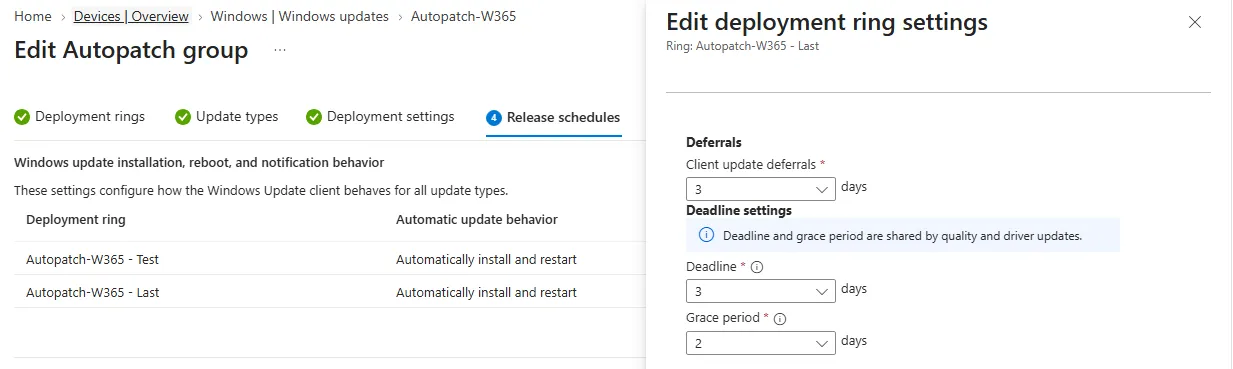
In a Windows Autopatch group these are the Deadline and Grace period fields in the deployment ring settings, here 3 and 2 days. Intune shows a note that they are shared by quality and driver updates. In a classic Windows update ring they sit under the user experience settings. Either way, that’s where they belong.
The Update CSP also has a ConfigureDeadlineNoAutoRebootForQualityUpdates variant for Windows 11 22H2 and later. On the Autopatch-managed device I checked, the generic ConfigureDeadlineNoAutoReboot value was delivered instead, so that’s the one the script looks for.
What PowerShell Is Good For: Checking What the Device Received
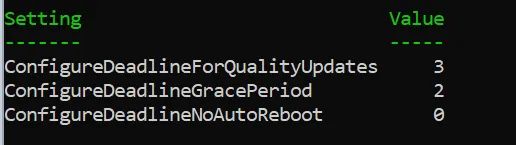
Instead of hacking around the restart, read what Windows actually received. This reads the effective policy values from the PolicyManager key:
$WUPath = "HKLM:\SOFTWARE\Microsoft\PolicyManager\current\device\Update"

$Settings = @(
    "ConfigureDeadlineForQualityUpdates"
    "ConfigureDeadlineGracePeriod"
    "ConfigureDeadlineNoAutoReboot"
)

# The key only exists once MDM has delivered Update policies (not on unmanaged devices)
$KeyExists = Test-Path -Path $WUPath
$Policy    = if ($KeyExists) { Get-ItemProperty -Path $WUPath -ErrorAction SilentlyContinue }

foreach ($Setting in $Settings) {

    $Value = if ($Policy) { $Policy.$Setting }

    [PSCustomObject]@{
        Setting = $Setting
        Value   = if ($null -ne $Value) { $Value }
                  elseif ($KeyExists)   { "Not configured" }
                  else                  { "Not configured (Key missing)" }
    }
}
“Not configured” means the policy never arrived on this device, so Windows falls back to its defaults. That is often the real answer to “why did my device reboot?” “Not configured (Key missing)” means no Update policy has been delivered at all, which is typical for unmanaged machines. Unassigned policies don’t create a registry value, which is why the script checks for the property instead of reading it directly.
Who set the value? _ProviderSet and _WinningProvider
If you export the key, you’ll notice that every setting comes with two companion values. For ConfigureDeadlineNoAutoReboot they look like this:
ConfigureDeadlineNoAutoReboot                  = 0
ConfigureDeadlineNoAutoReboot_ProviderSet      = 1
ConfigureDeadlineNoAutoReboot_WinningProvider = 47385CEE-A7FC-422B-AA43-93321987566A_ProviderSettells you that a management provider set this value.1means the value comes from a provider such as your MDM, not from a Windows default._WinningProvideris the ID of the provider whose value is in effect. It is the enrollment ID of the source that won. On an Intune-managed device, that is the Intune enrollment.
Don’t be surprised if you see more than one provider ID in the key. Even on a cloud-only, Intune-managed device, a second, non-MDM enrollment can appear. It only delivers a few update settings such as QualityUpdateEnrolled and AllowRebootlessUpdates, and it has no ProviderID or enrollment URL. The deadline settings still come from Intune.
The effective value in the key is the winner’s, and _WinningProvider tells you which source that was. If a device shows an unexpected deadline, check it before blaming your update policy.
You can resolve the GUID to the enrollment with this:
$Id = "47385CEE-A7FC-422B-AA43-93321987566A"   # your _WinningProvider value

Get-ItemProperty -Path "HKLM:\SOFTWARE\Microsoft\Enrollments\$Id" |
    Select-Object ProviderID, DiscoveryServiceFullURL
For an Intune enrollment, ProviderID is MS DM Server and the discovery URL points to enrollment.manage.microsoft.com. The per-provider values also live under HKLM:\SOFTWARE\Microsoft\PolicyManager\providers\<GUID>.
Why Not Just Change the Registry?
Plenty of scripts online edit Windows Update registry values to influence restarts. Don’t use that as the solution on managed devices. Microsoft recommends configuring restart behavior through Group Policy or MDM and advises against editing the registry directly.
Configure the behavior centrally rather than fighting a restart that’s already scheduled.
The Takeaway
There is no magic cmdlet like this:
Delay-WindowsUpdateReboot -Hours 4Think of it as a pipeline:
Update discovered/offered → Installation complete (pending restart) → Effective deadline reached (deadline and grace period, whichever is later) → Restart enforced
PowerShell is great for diagnosing why a device behaves the way it does. Your update policies should define when users may postpone a restart.
Recommendation
- Run the script on an affected device and see which values actually arrived.
- If they’re missing or not what you expected, fix the update ring or Autopatch group in Intune. Check assignments and policy conflicts first.
- Pick a deadline and grace period that fit how your users work, such as longer grace for laptops that are often offline.
If your users regularly need a PowerShell script to escape forced reboots, the script isn’t what needs fixing.
Sources
Head of AI
Jannik brings deep expertise in AI integration, modern infrastructure, and enterprise transformation at scale.
Leading Expert
Florian specializes in Intune, endpoint management, and security with extensive real-world enterprise experience.